
 With the advent of LCD TVs, many people want to connect TV to PC as an LCD makes for an excellent computer monitor. Those who want to hook up PC to TV often ask: Which cables do i need to connect my PC to a TV?
In this article, I’ll explain in simple terms how to hook up your PC to your TV and which cables you need to connect PC to TV. To succeed in this PC to TV Connection, you need only your eyes and a little bit of common sense.
After looking at the diagram below, and determining your situation, I will point out which cable that you need to buy.
Which Cables Do I Need To Connect My PC to a TV
Take a look at the diagram below. This diagram illustratrates connections between your PC and your LCD TV. As you view the diagram, take a look at both your computer and your TV to determine what connections are available. Below the diagram, you will find the proper cable for your situation.
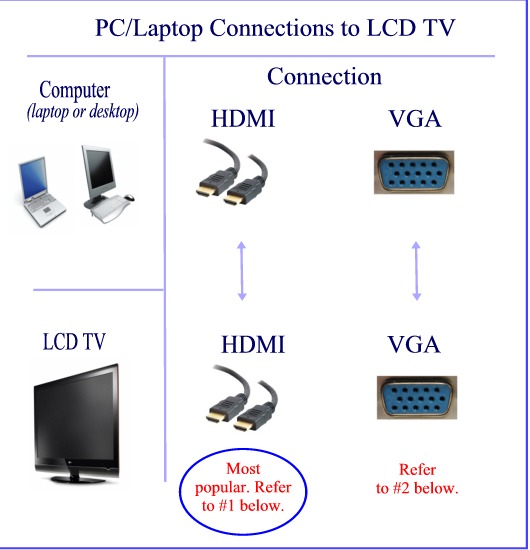
Situation #1: HDMI to HDMI Connector To Connect TV to PC
This is the most common situation in the year 2020 and works on virtually all setups.
As I wrote about in connecting your laptop to your LCD, you only need one thing to make this happen — an HDMI cable. I recommend this one as it will allow for the newest technologies and fastest streaming.
Situation #2: VGA to VGA Connector To Connect TV to PC
Before the advent of HDMI, a VGA connection was the most common way to connect your computer to your television.
Still today, this is the only option for some people with older TVs or laptops.
For this VGA to VGA connection, you’ll want to purchase the Belkin F3H982-25 Pro Series High-Integrity VGA/SVGA Monitor Replacement Cable (25 ft.). Last I checked this cable was under $25 and can be delivered to your doorstep the next day.
Situation #3: DVI to DVI To Connect TV to Hook Up PC to TV
I did not represent this situation in the diagram above because it is somewhat archaic nowadays. Most modern laptops no longer have DVI outputs. However, if both your LCD TV and your laptop computer have DVI you will want to purchase this cable: Cables To Go – 26911 – 2M DVI-D M/M Dual Link Digital Video Cable (Black). As of this writing, it is less than $7 and can be delivered immediately.
Connect TV to PC: Software Setup
After you have purchased and connected the proper cable to hookup your TV to your PC, you will need to get it up and running with your computer.
We will take a look at the general software setup with laptops and desktops separately. Laptops and desktops differ slightly because the laptop has a built-in screen. With each of these situations, you will need to find the input button on your TV so that you can set it to the proper input.
Note: If you prefer how to videos, you may want to consult How To Connect Computer To TV for video instruction.
Connect Laptop To LCD TV
After you have physically connected your laptop to your PC, you basically now have two monitors connected: the laptop screen and the LCD TV.
You now want to hit your TV remote input button until you get to the desired choice (it’s usually labelled “PC” or “HDMI” depending on your selection above). Now, on your laptop screen, you will want to right-click a vacant area of the desktop and then choose properties. Then, click the settings tab. You should now see a second choice in the monitors window. If you want to use the LCD only, you should click the monitor and then select the “Use this device as the primary monitor” checkbox. If you want to use both the laptop screen and the LCD TV at the same time, then select “Extend my Windows desktop onto this monitor” and you can use both monitors at the same time! This is my preferred choice.
I use a Dell laptop and you can switch on the fly between using the laptop monitor, the LCD, or both at one time by pressing the function key (Fn) and F8 at the same time.
Connect Desktop Computer To LCD TV
From a software perspective, connecting your desktop computer to your LCD TV is very simple.
After you have made the physical connection in one of the three ways above, simply change the input on your TV to reflect the appropriate choice (HDMI, VGA–often labelled PC, or DVI). You may want to modify the settings on both your TV and your PC for optimum resolution.
If you would like to use both your standard monitor AND your LCD TV, you will need a graphics card that is capable of dual monitors. Many of the new ones are. I recommend this VisionTek Radeon graphics card if you would like an HDMI dual-display output from your desktop PC to multiple LCDs..
If you want to have a two monitor setup with your desktop, right-click a vacant area of the desktop and then choose properties. Then, click the settings tab. You should now see a second choice in the monitors window. If you want to use the LCD only, you should click that monitor and then select the “Use this device as the primary monitor” checkbox. If you want to use both the computer monitor and the LCD TV at the same time, then select “Extend my Windows desktop onto this monitor” and you can use both monitors at the same time! (Note: Your video card supplier may have incorporated different video software in which case the instructions will differ slightly.)
Connect TV to PC: Summary
If you would like to connect your PC to your TV, the process is relatively easy and you do not need to be a technical genius. As illustrated above, you need 1 of the following 2 cables:
1.) 4K HDMI 10 Foot Cable: This HDMI to HDMI cable will have you all setup for today and the advanced streaming of the future.
2.) Belkin F3H982-25 Pro Series High-Integrity VGA/SVGA Monitor Replacement Cable (25 ft.): Use this for a VGA connection. The works with virtually every computer and every LCD TV.
The benefits of connecting your computer to your TV are amazing. This is a great way to show a room full of friends your latest pictures and videos. LCD TVs also perform well as gigantic computer monitors for everyday use.
We hope that this article has illustrated to you how to connect your PC to your TV and answered the question: Which cables do i need to connect my PC to a TV?

Richard Cummings
Get your copy of his latest book entitled Obvious Conclusions, stories of a Midwestern emigrant influenced and corrupted by many years living in San Francisco and abroad. It just received its first outstanding review "...reminiscent of David Sedaris or Augusten Burroughs" on Amazon UK.
Latest posts by Richard Cummings (see all)
- The Google Pixel Fold: Why It’s the Star of Google I/O 2023 - May 9, 2023
- Book Review:Malibu Rising by Taylor Jenkins Reid - March 6, 2022
- Beautiful World, Where Are You: A Book Review by Richard Cummings - February 18, 2022
Comments 26
great tutorial, but i was sondering, since i have an HDMI port in the back of my computer, would i be able to connect my pc to a tv with an HDMI to HDMI cable
Sam, yes, this would be the ideal way. I did not add this as yet because so few people have HDMI on their computers. This # is growing however so I will add this to the list in the near future. HDMI from computer to HDMI on TV IS doable and a great way to set up PC connections to a TV.
thanks =)
My laptop is new, my TV is older. I did use an S-Video cable from my laptop to my TV and it worked great. However, my new laptop no longer has the S-Video and my TV doesn’t have VGA, HDMI or DVI. Is there a converter out there make this connection possible again?
Thank you!
hey can u please tell me something i cant resolve it
i connect my pc onto my LCD TV and the screen is alright
but i dont put the speakers from my old computer
because i want to hear sounds from my LCD
i cant resolve it and i am searching this for 2 weeks pls reply me
How do you connect the keyboard?
Explain about switching function of computer and TV that you mentioned> How?
I followed your steps pc to tv using hdmi cables, i get the msg. no pc signal. I hit f8 after connecting & used monitor 2, same results. What other steps can i take? pc & tv both have hdmi ports, i tried ports 1,2 &3 on back of tv as well as hd15 cables. Nothing is working.
I bought a 26″ RCA lcd to use for a monitor. VGA to VGA. I get the Windows boot up screen and then it goes to black. There is a signal. My desk top is an HP Media Center that I bought in 2006. It states that it has no TV out put. I have checked the resolution and it is the same audio and VGA that hooks to my monitor. Is my Hard drive unable to sent the signal??
How do I connect from pc to LCD tv wirelessly? Cables are cumbersome and not ‘nice’ inthe living room.
We have our Dell laptop connected to our tv, and we watch old black and white films from various sources on the web on our TV. Is there a way to record them?
How would I connect two TVs and a computor monitor together. This is something I am wanting to do at my church. Would I run one cable from the computor into a splitter and split off to the tv’s.
Thank you. Very helpful.
How do I make the sound output to the tv and not the computer?
Dear
I have my Dell Dimension 8400 hooked up to my Sharp Aquos LC-26GA5U thru a DVI/HDMI using an inline adapter to extend my cord with a HDMI/HDMI. I have it dualview setup and want to hook up to the DVI connection on the back of my tv. The HDMI/DVI adapter (made by Phillips) that I purchased from Walmart will not fit into the 5 (DVI) TV slot easily and I cannot get the TV to show a signal to the 5 slot (which is the pc terminal) on the Aquos. The adapter (to the TV) is a 30 pin and the DVI cable coming form my pc is an 18 pin. Will this make a difference?
hi guys how would i send pc to tv on old tv with scart connection with no s video or composite cable connections on back of tv just ariel and scart thnx …..seany
There is only one VGA on my Desktop computer. If I use it to connect PC to LCD TV then how can I use my computer with its monitor for other purposes (browsing etc).
Thanks
Thanks for all the help on hooking up my PC to LCD. I’ve found that the DVI/HDMI is the best way to go, as it will give me full screen on my LCD and the DVI/DVI connection only gives me a screen slightly larger picture viewer than my Dell monitor. For all those looking, to me , this is the best option if you have a DVI output from your PC and a HDMI input on your TV.
I have cable internet. The cable comes out of the wall, into the cable modem…then my computer is hooked up via the dvi or whatever cord. I just had them start cable tv for me…how do i keep my tv as my monitor and beable to watch cable tv on the same tv without having to unplug the cable from the modem and into the tv every time I wasnt to watch tv?? Please help! Thanks!!
I have hooked up my PC to my TV with HDMI cables. I hve changed the input on my TV remote to HDMI and have changed the Properties/Setting to “Extend my Windows onto this monitor” as your instructions.
My desktop pic is now on the TV screen and the mouse but no pc icons….what have I missed?
Sheila, Do you have your settings for clone or dualview. This will make a difference on where the desktop icons will be located. Right click on the desktop and bring up your display properties. That should tell you wheather you are on clone or dualview. If dualview, your mouse will travel back and forth from your pc monitor to the tv. If so, you can drag the icons to the tv. Be careful though, if you lose the dualview your icons might be stuck out of screen to your monitor. Hope this helps, Wayne.
i did not get any vga cable that is too long for wre i need the lcd tv to be.pls how can i do it because i need the tv to be too far from the cpu, it is for school use. so we need the cpu to be in another room.
You only mention connecting to LCD TV. My question is can you connect to a plasma tv?
To answer some of the questions, you may need a splitter to split a signal from one source to multiple machines. If that doesn’t work due to distance then an expensive wireless solution is needed. For those with old tvs and new laptops, perhaps it’s time to get a newer tv, you’ll have to someday anyway otherwise you’ll have to look for a (pc to tv converter)device to bridge old and new tech. For those with old laptops and new flat panel tvs, you can get s-video adapters to composite rca cable or just a 15 pin vga cable if laptop and tv have those outputs/inputs. Scart to composite adapters are out there too. Whatever way w/out pc to tv converter box, you’ll need an audio cable for sound as those video connections are for video only. The exception is if you have a flat panel tv and a new laptop with hdmi connection that’ll carry both video and audio so all you have to do is make sure you select the right settings on laptop and tv so they communicate. LCD and Plasma tv’s have the same connections more or less so no stupid questions plz. Good luck folks hope this helps!
Its really very beneficial and significant to know about the how we can connect computer on TV.
I dont have a DGA nor a DVI on my macbook.
I have a laptop, a sony bravia and a surround system 5.1.
I have connected tv to surround with HDMI 1 and tv audio output to surround.When i connect HDMI 2 from laptop out to tv in and choose tv/video fucntion on Surround system the surround system doesnt give output.
How to get this output of laptop sound on surround system