
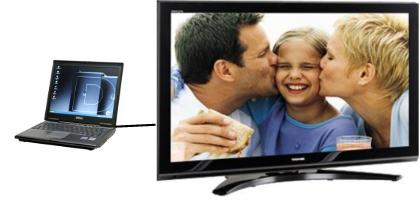
 If you want to know how to connect your laptop or desktop PC to your LCD TV, I’ve got you covered with what you need and how to do it. Let’s get started!
The other day I was considering buying a new LCD monitor to use with my laptop. At the time, I was using an older, clunkier LCD monitor (that I bought only 3 years ago!) and I was tired of it.
On the way out the door, I noticed my incredible Samsung 55″ QLED 4k LCD TV and thought, “Why can I not just hook up my laptop PC to the big screen LCD TV?”
After all, I was only going to buy a new 22″ LCD monitor and here, in my living room, I have a brand new 2020 55″ Samsung LCD TV– well over twice the size of the monitor that I am going to buy.
How difficult could it be to connect my PC to the digital/LCD TV? It turns out that it is not difficult at all to learn to connect computer to TV. You only need one thing to connect your laptop or desktop PC to your LCD high definition television. Yep. That’s it. Just one thing. And with this one thing, you turn your TV into your PC monitor.
And it looks fantastic! So what’s the one thing?
The One Thing You Need to Connect Your Computer to Your TV
So, on that day, when I had the revelation of using my LCD TV as my computer monitor, I looked on the back of my TV. I could have consulted the manual, but I don’t like to RTFM (Read The F*&cking Manual) . It’s kind of like asking for directions.
There on the back of my Samsung QLED TV were many 3 HDMI ports, which resemble the photo below:
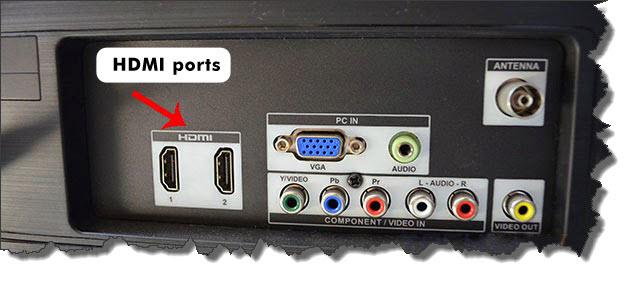
On my Samsung, they are snuggled in there vertically to allow for the narrow profile of the LCD TV.
My laptop also has HDMI so all I needed was an HDMI cable to hook up my laptop to the TV. I happened to have one handy but, if you do not, here is the HDMI cable that you want because it is equipped to solidly deliver a 4k streaming experience and handle all the new devices that you may want to connect.
After you have connected one end of the HDMI to your laptop computer and the other end to your LCD TV, all you need to do is hit the input button on your TV and, perhaps on your laptop–some laptops have automatic detection.
For example, on my Dell Inpiron 13,3, I have one HDMI port and, once connected, I saw the contents of my laptop on my LCD.
On a Dell to switch back and forth between your laptop, LCD, or extended (when you use your LCD as an extension of your laptop screen) mode, you hit the function key [Fn] and hold the F8 key. After hitting these keys, you’ll see the photo below to make your appropriate choice.
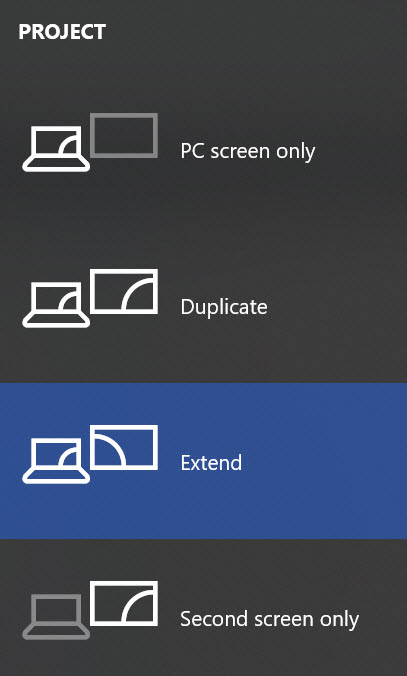
As you see in the photo above, I normally operate in “Extended” mode so I can work on both monitors at one time. And then, if I am watching a movie or YouTube TV, I go into “Second screen only” mode so that I am only viewing the contents on my LCD TV.
I literally love my setup!
Oh, and one other thing I do that you would probably enjoy as well.
I use an app on my Android phone called Unified Remote to remotely control my computer.
Why is this so cool?
Well, imagine that you’re sitting on your bed watching a movie and you want to pause the movie to make a phone call. Do you want to have to get up and walk over to your computer to hit the pause button?
Absolutely not!
You want to use this app as a remote control for your computer so that you can stay put in your comfy bed.
And you will be very content. I promise!
But, now we have the next dreaded question…”what if I don’t have HDMI on my computer or LCD?”
How to Connect Your Computer to Your TV without HDMI
Nearly every LCD has an HDMI port but, unfortunately, the same cannot be said for laptops and desktops.
Certainly, many old laptops do not have HDMI ports and, even some newer sleek models do not have HDMI on them (I always recommend getting a laptop with HDMI!).
But, what if you don’t have HDMI? What are your alternatives?
Connect Your Laptop to Your TV with VGA
Before HDMI, a VGA port was typically what you used to connect your computer monitor. These ports come in two varieties: Male and Female. This is for obvious reasons. Take a look below:
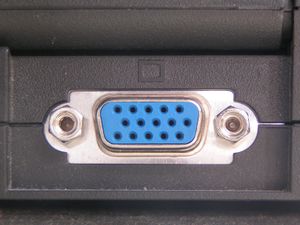
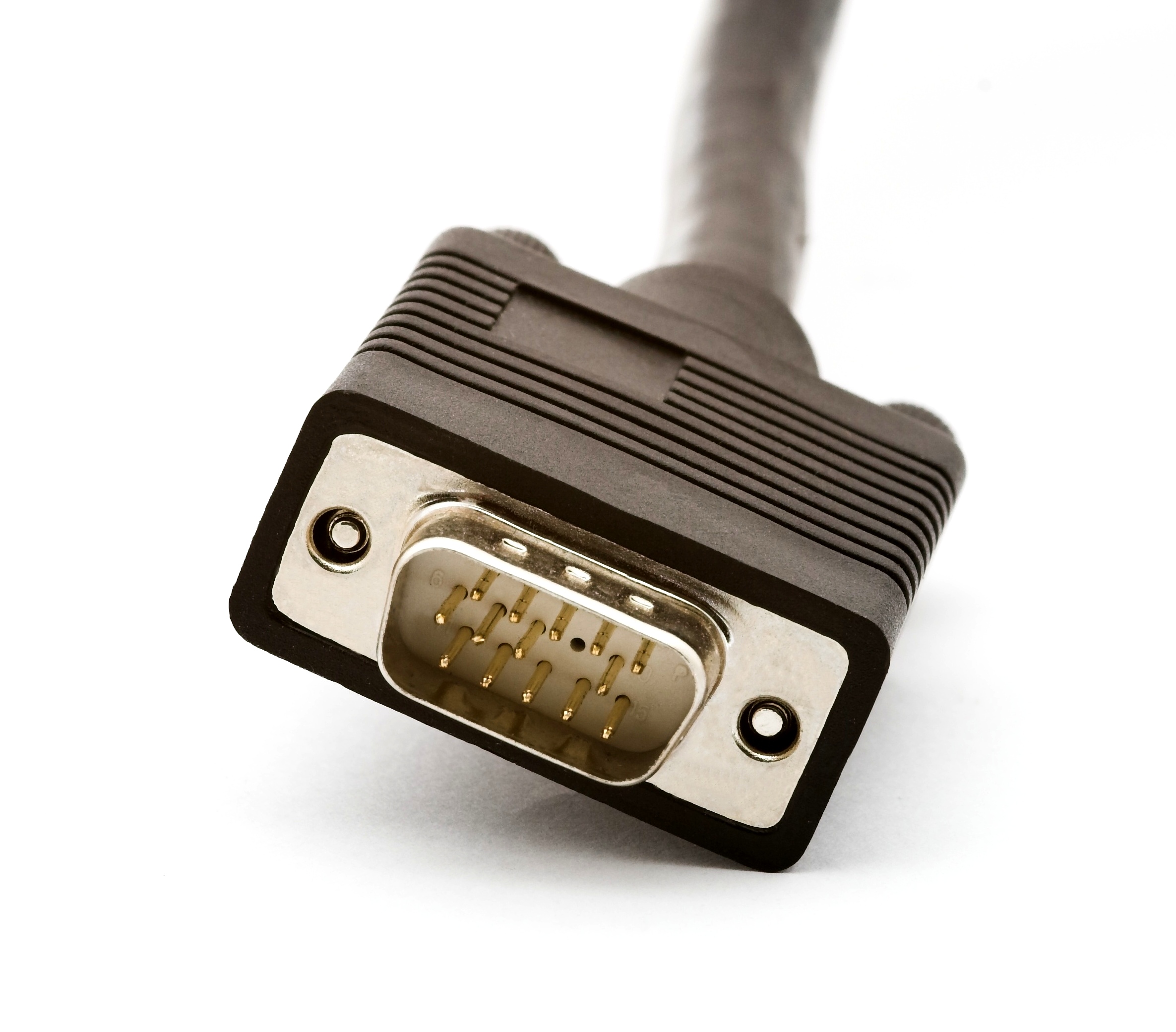
Obvious no? Now, these are 15-pin VGA cables, called so because…yes, they have 15 pins. The female, the receiver, has open spaces for the 15-pin male. Normally, your standard computer monitor has a 15-pin male VGA connection, which fits snugly into the 15-pin female connector on your laptop or PC.
However, I have seen situations where a laptop had a female 15-pin connector AND the LCD TV also had a female 15-pin connector. What do these two female receptacles need? You guessed it–they need males, two to be exact. Two strong 15-pin male connectors to fill their holes.
This got me wondering…Which cables do i need to connect my PC to a TV? And so…here is what you need to buy to connect your Laptop or Desktop PC to Your Digital/LCD TV using a VGA connection. One VGA (also sometimes called SVGA) cable with male 15-pin connectors on both sides.
What, you say, where the heck do I get that? How am I suppose to know? You’re not. That is why I am going to tell you. You can buy this VGA cable here.
If for some reason you do not want to buy online, if you go to the store, you are looking for a Belkin HDDB15 Male/HDDB15 Male SVGA Monitor cable. It’s part #F3H982A06.
For more information on cables, including finding the best HDMI cable if you want to go with an advanced connection, please see the article Connect TV to PC for graphical illustrations.
After you get the cable, connect your laptop or desktop to the LCD TV with this cable, hit the INPUT button on your LCD TV and choose computer, and then find out how to switch your computer over to the LCD high-def big screen TV. As I mentioned above, on my Dell and almost all Dell laptops, you hold down the FN (function) key and press F8 a couple of times. For a desktop, you’ll probably have to go into the display card settings by right-clicking on your desktop. We also have how to videos on this topic in this post: How To Connect Computer To TV.
You’re off and running now. Enjoy the experience of using your LCD TV as your PC computer monitor. There are also some incredibly cool things you can do with this setup, like watch all the movies you have you on computer on the big screen, have an amazing photo viewing experience, and–what I’ve been doing a lot lately–watching YouTube TV!
Readers who enjoyed this post also are reading copy DVD to hard drive and How Do I Save YouTube Videos On My Computer so they can put all of their entertainment on their laptop 🙂

Richard Cummings
Get your copy of his latest book entitled Obvious Conclusions, stories of a Midwestern emigrant influenced and corrupted by many years living in San Francisco and abroad. It just received its first outstanding review "...reminiscent of David Sedaris or Augusten Burroughs" on Amazon UK.
Latest posts by Richard Cummings (see all)
- The Google Pixel Fold: Why It’s the Star of Google I/O 2023 - May 9, 2023
- Book Review:Malibu Rising by Taylor Jenkins Reid - March 6, 2022
- Beautiful World, Where Are You: A Book Review by Richard Cummings - February 18, 2022
Comments 72
Hi I got to your site trying to connect my medion laptop to my tv monitor (NRP-601Lcd)
Via its VGA 15 pins connector input. I’m using a monitor cable (blue with the 15 pins)wich seems to fit ok.
I followed the instructions on my laptop. that is to press the function key + F4 once first and my laptop screen goes black and comes back, then again the same keys stroke to which my laptop screen respond by turning black again and stays that way but nothing happens on my large lcd tv screen but the original red writing telling me there is no connection.
Perhaps you’d would have somme sugestions?
I hope you could sent me an email if you do. although I’ll try to keep the url.
Thank you for anyone’s time
MM
Oh I found the box to tick for email notification request! 🙂
You’ll need to check your monitor’s capabilities … is it true 1080i or p? or 720 ?
You need to set your computer resolution to something that the monitor can display … if you have a 1080i monitor, but are running your computer at 1600×1200, you’ll have to reduce the resolution to something under 1080.
Experiment with the settings in the Display properties in Control Panel.
Also, you may have to reduce the reset rate (again in Display properties, under Advanced) to 60 Hz, instead of the 75 or 85 Hz that your computer monitor can display
ps… when you hold Fn key and press the F4 key, hold the F4 key down for a few seconds … the laptop screen should display which mode you’re in …
Thanks for the last update on this topic.
I was succesful in solving this problem after sending an email to “Setenta” a sport channel that has also a broadband facility and for which I was trying to connect my laptop with.
They sent me a detailed way to configure my media player on the laptop. I followed their instruction and soon was able to watch their channel. I missplaced their email else I would have copied it here.
But I think anyone could email most of those companies that broadcast programmes on broad band and get up to date help.
MM
Nice tutorial, I might do this to my LCD TV too. Hope it work. Thanks for putting this up.
Thank you for this post. I’ve been searching everywhere.. eh the press function and f8 key certainly did the trick. Cheers
Dude, I just checked out that satellite TV thing. Sweet! Now, I got Satellite TV running through my computer on my big screen. But, even cooler, I can now watch sports on my laptop whereever I go. Thanks again dude. Great tips!
Hi there, thank you so much for the tips! i had so much trouble trying to figure out how to connect, especially not knowing much about computers and going to other sites with all these technical terms, and the writer expecting the reader to know these terms (which i had no idea).
Thank you so much for your help, i only have one problem now. My sound doesnt work.. I’ve tried to turn up the volume function on my Dell laptop but it still doesnt work. Any suggestions??
Cheers, Anna
I have my laptop hooked up with vga and the picture is great but I don’t have any sound. I tried running red and white from the head phone jack but still no sound!! Can someone help?
In my case I had to buy a cable for the sound. On my monitor I have a VGA port as described above with pic. and next to it a sound port too. So my cable had two identical ends (male) as the sound output on my laptop looked similar to the one next to the VGA port on my monitor. I imagine that if the laptop is “output” the other one must be “input”. but it worked for me! 🙂 MM
I have a Panasonic Viera 42′ Plasma and have no problems at all connecting my Dell Lap top which runs on XP but when I try to use my newer Dell desktop with Vista the TV goes black as soon as Windows starts up. Any tips?
I have been trying to get my laptop to display correctly on my Sony bravia LCD screen. I have connected them up via the VGA connection but can’t seem to get it to display on the tv without an annoying yellow colour when it should be showing white.
Any suggestions? I have tried several cables but all produce the same annoying yellowish tinge.
Thanks
Ed
Dear Sir:
I have connected my Sony bravia’s VGA port (on the back of my TV) to my Laptop computer and Audio port to my PC also. I have try by changign the TV to many different channels. But, can’t seem to get it to display.
Any suggestions?
Thanks
Steven Chan
Steve, you are not concerned with the channels…just the input choice on the TV. Make sure that you choose PC INPUT.
Richard
Does anybody now how to display ‘WMS 100 Image Wireless Projector Adaptor’ with D-Sub 15 pin video output and ‘1024×768’ resolution to older LCD TV Panasonic Viera TC-32LX20 with any of its connections terminals(has no VGA input).
We have tried VGA male cable conversion to LCD’s RCA INPUT VIDEO, S-VIDEO and Component with no luck.
We are skeptical about VGA->HDMI TYPE A Connector as well.
Thank you very much for any suggestions.
Hi,
I am using VGA cable to connect my laptop Acer Aspire 5633wlmi to my LCD TV. But TV screen is blank. Can any body tell me how can I watch laptop screen on my TV.
Hi,
This was definitely the most helpful post on this subject I have come across. I’m trying to connect a dell inspiron laptop 1501 (vista home premium) to display on a prima lcd tv/monitor. I have a 15 pin belkin vga cable connected, input on tv is set to pc and I have pressed F8 with fn key (crt/lcd) many times and tried holding it but with no success. The laptop screen has absolutely no change when I hit F 8 and the tv states there is no signal. Have checked all connections and don’t know what else to try. Any help will be greatly appreciated. Thanks.
Hello!
It seems plug and play but the TV is not reading my laptop. I tried Fn F7 in Sony Viao VGN-FS700. I also put it to PC input in the TV (Samsung Series 6 630). I already tried 2 brand VGA cables. Do I need to get a sepcial cable for it or set to a specific resolution in the laptop. The manual of the TV says that Optimum resolution is 1920 X 1080 but the highest resolution in the laptop is 1680 X 1050 only. I called Tech Support of Samsung and he said that it should not matter. I played around the resolution to check if it will work but it didn’t. It still says ‘This source is not connected’. Please help. Thanks in advance.
Hi,
I tried connecting my Dell Inspiron to my Toshiba HDTV and everything seems to be working fine, but there is no display on the TV. I tried switching display settings by lowering the resolution and hitting the fn+f8 buttons, but nothing is happening. Occasionally it will appear that the TV and laptop have a connection, but still no display. And sometimes the TV will read with ‘no signal’.
I have no clue what I’m doing wrong, any suggestions on how to get it to display on the TV?
Thank you.
Hi everyone,
I have dell laptop and I am trying to connect it to a Panasonic 32inch TV with a VGA connector.
My problem is the display on TV cuts out the edges – i.e I can’t see the tool bar, or when I am watching a movie, the side of the image is cut off.
Any help would be greatly appreciated.
Hi there,
I have been having the same problems trying to connect my Acer laptop to a Samsung LCD. I was using a 3m VGA-VGA cable. Checked all settings still no joy. Also rang Samsung who were hopeless!!!!! Anyways……tried again using a 1.5m cable and guess what? Worked perfectly. Looks amazing. I did try the 3m cable on another computer monitor and it works, but not with the Samsung. So I reckon it must be a really poor quality cable that is degrading the signal over that length.
So my advice would be to try a short cable/higher quality. My next task is to find a longer cable that works as that was the point in the first place!!!
Folks,
I am connecting my TV (Vizio 32″ LCD 1080p) with my Sony VGN-FW270J laptop using an HDMI cable. I get audio and video – however, the video image size is almost the same as the 16″ on my laptop – what setting do I need to change to get the laptop image as the TV size.
Thanks,
Easwar
Hi there i have a acer aspire 5633 laptop with the male vga socket on the back but i don,t have1 on my tv, can u get vga cable with scart connection.
Hi, the belkin cable gets u the image and the audio the sound right..?
so a better way to get it is with a dvi to a hdmi will be better? is this true ?
What if i dont have the output for the dvi in my pc or laptop?
I’m trying the same thing with my LCD tv and desktop computer. Got all the nifty little connectors on the back of the new tv, got the Belkin VGA cable, connected according to the tv manual, which, by the way, is exactly as you stated. All I get is “Invalid Format” when I select pc. TV user’s manual is useless for troubleshooting this. What do I need to change?
I cabled an old desktop p.c. running WinXP to our LCD TV using a typical 15 pin VGA cable. It worked perfectly. I just booted up the p.c. and changed the Source (or Input, as it is called on some TV’s) on the TV to VGA. I use a Blanc mini wireless USB adaptor to receive wireless internet to the p.c.
Since doing this, I have read all sorts of instructions on various websites. It appears that the procedure is more complicated when using a laptop because you must enable the display on the seond monitor (the TV set). Also if you are using Win Vista, you might have to first activate “output to TV” in the computer display settings.
hi! i have been having trouble to display sound from my HP Laptop to my LCD SAMSUNG TV using connection cable VGA, what happen is videos well display on tv and sound on laptop can you help? pls.
hi i have a sony vaio vgn-fs415s and a samsung le32r8 32″ and i am trying to connect my laptop to the lcd screen. I already have the vga cable i have 2 of them but i cant seem to get the tv to connect to it i press source and have looked inthe settings and instructiions but no LUCK 🙁 i really want this to work can any one help me please!
thanks in advance
hi. i tried to connect my acer laptop to samsung lcd tv via 15 pin vga cable. laptop showed connected but tv showed no input. no solution found. finally connected laptop via s-video output to video input (requires s-vdeo to av connector lead). the audio output is via audio lead from headphone jack in laptop to audio input on av input port on lcd tv (requires headphone audio jack to av audio lead).
I, too, have the yellowish tint with my laptop connected. Its funny but I have a similar set-up as the author: 42″ Toshiba and Dell laptop. Only I get a yellow tint. Go figure! Anyone else get this? How did you solve it?
I am getting a yellow tint when connecting pc to lcd tv via a VGA cable, can anyone help
Thanking all in advance
Peter
Hi,
Ive been trying to connect my new 42″ Sony Bravia to my Lenovo Laptop. I connected the 2 using a male/male 15 pin VGA cable (3m). However I am getting the display on the TV almost the same size as my laptop display. Ive tried reducing the resolution on my laptop with several options but i get the message ” Unsupported Signal….Adjust your PC Signal”.
Ive been trying this for the past 2 days with no result. Would really appreciate some advice on what i could do to get the display complete on the LCD screen. Do I need to change my cable or do I need to do something with the PC? any help would be most appreciated.
Thanks!!!!
Hi, I was trying to connect my Sony Bravia to Dell Inspiron 1501 via a VGA cable. It works fine but I am having some trouble getting the resolution on the TV to go full screen. I consulted the TV manual (yes! unfortunately RTFM) and it gives me a table of values of what resolutions to use with what horizontal and vertical frequencies? Could someone provide me feedback on what this is and how I could get my laptop to display fullscreen on my TV because right now I just have to live with a 26″ display in the center of the screen instead of using the full 46″ tv.
Hi i have hooked up my computer to my tv and am also getting a yellow tint. Does anyone know why?
Hi there
I had the same problem with connecting a laptop up to my Sony Bravia and also had this ‘yellow tint’ on the screen. After trying many different VGA cables and then reverting to another laptop, it became clear that the culprit was a dodgy VGA output on the laptop.
You’d be wise to experiment by process of elimination and try different cables / laptops to diagnose what is causing the yellow tint.
This was the most helpful answer i’ve come across and believe me ive looked at loads, i have an acer aspire laptop and was still able to sort my laptop out so it could connect to my TV with a vga cable so thank you.
hi
pls i hav a toshiba 32″ REGZA and a samsung r60,
but i cant seem to connect can anyone help me??
charlie
I’m trying to connect my HP laptop to a Sony Bravia. When the computer is booting up the tv displays what’s on my computer screen; however, once my computer gets past the initial boot up phase, an error message appears on the tv and says “unsupported signal. please check the device output.” I have Windows Vista. Any help would be appreciated. Thanks.
I hooked up my desktop pc “not laptop” to 42 inch LG lcd tv i bought,and every time i try to put the highest or any ressolution a black screen shows on the tv screen and says “INVALID FORMAT” I hate it ,so to fix it i restart my pc and it works but i dont want to do that my whole life ,,,,,,PLEASE I NEED YOUR HELP””””’
”
__
I have my Samsung LCD TV (L32B350) 32″…. I connect it with my laptop using 15 pin VGA cable… It connects… however I see “Check Signal Cable” on my screen even though I saw the picture from my laptop…. can anyone help mwe with this?
Hi Ryan,
Even I face the same problem with my Samsung LCD TV (L32B450C4LXL). I connect it to my laptop using 15 Pin VGA Cable, the laptop diplay gets shared on the LCD TV but along with the message “Check Signal Cable”. Can anyone help me with this?
Sorry for the typo. The model number is LA32B450C4LXL and not L32B450C4LXL.
Hi! I have Toshiba Satellite Laptop. How can I connect it to my Samsung LCD Series 3 32″ TV. Is the sound and picture will work? Please help.
HI there,
Thanks alot and its easily work from my comp to my sony LCD monitor.
Just i need one more of your help. Is it possible the audio from laptop can be on also from monitor?
Thanks.
Hello sir,
i have samsung 32 inch LCD and HCL laptop,
I connected my laptop with LCd But im not able to watch videos and also there is no sound output.Im using 3 m VGA cable 15 pin.
I have a samsung 52inch LCD tv that I connected to my HP computer, everything seem to be working fine but, for some reason I have to scroll up down or side to side to view my start button or to view all my icons. Can some help my please. Thnx
Thank you!! This did the trick!
I am having buzzing noise(high pitch) problem when I connect acer aspire 5920 “audio output” to “rgb audio input” of vizio lcd tv.
I notice this buzzing noise start even though systems is booting up. So it is not the driver problem.
There is no sound problem when I connect TV to another Dell laptop or No problem when I connect this Acer laptop audio output to speakers.
I don’t understand weather it is a TV problem or Acer BIOS/Firmware problem.
I don’t find any solution on the google.
Please help me.
sumitghaiin@gmail.com
I have read your article how to connect pc to lcd tv. When I look up a cable hdmi to dvi it states that this does not support audio signal only video does the vga connection support both ?
Hai,
I have use vga cable connection from ACer laptop to Sharp lcd 42″ for past 6 months. Recently I cannot see the red color and the pictures are dull and not so bright at lcd.
wHAT is the actual problem?
I have checked the cable, it ok.
Can someone help me.
Yeah i got a toshiba laptop computer and just bough a 47″” lcd 1080 60 hz I was wondering if i boght any diffrent type of video card for the laptop that it would increase the performance for the tv resouloution???
Re: “No Audio”, you do have to get the audio from your lap top into the other screen device as well as the vga is only for video. I needed a cable with a stereo jack at one end plugged into the laptop “Audio out” and two RCA to go into the other device “Audio In”
mm
I need some help!!
I have successfully used my laptop (HP Pavilion) connected to my LCD HDTV (LG 47″) with a VGA cable for some time now. I have a VGA cable permanently connected to the TV that I normally I just connect to my laptop whenever I want to view it on there and it just automatically works.
Last night I was viewing it as normal and whe I moved the laptop and the VGA cable came undone from the computer. When I plugged the cable back in the TV now gives me a message of “No Signal”.
I did some troubleshooting like: rebooting the computer; disconnecting the cable from both the TV and the computer; adjusting the resoluion; etc. I still get the same result.
The additional info about this is that I have tested connecting another laptop to the TV (it works fine) and connecting my laptop toanother TV (also works fine).
I’m not sure what else to do to get my laptop to work with my LG TV as it did just seconds before I moved the laptop and the cable came disconnected.
Any help is appreciated.
Hi!
I’m having some difficulties with connecting my laptop to my LCD via HDMI cable. I can’t quite firugre out why, but I always seem to end up with an error message “An incompetale video signal has been received. Check the output device settings.”
Any help would be very appriciated.
my LCD TV: SHARP Aquos lc32dh65e
my Laptop: ACER ASPIRE 7736Z
hey thanks so much! I followed all your instructions after hours of being pissed off and trying to connect my hp to my samsung and finally I realized I had to lower my resolution to 1024 and now its perfect! Thanks again!!
HI.. i am trying to connect my laptop with Samsung LCD TV. I used VGA 15 Pin cable to connect the same. & i got the picture on TV which i run on my laptop. But at the same time i am getting error message “Check Signal Cable” on the TV screen. Also one thing unable to here sound from TV after connecting the laptop. Can anyone help me on this.
Thanks,
Prasad lele
Great idea, I will try to connect my laptop to my lcd and enjoy HD 🙂
HI.. i am trying to connect my laptop with Sony LCD TV. I used VGA 15 Pin cable to connect the same. But i caannot access any signal on TV ?
Hi i have a sony vio laptop an i hooked it to my LG tv but on the tv it gives me the message of invalid format please help wut do i do?
Thanks alot Cason
Hi. I have a samsung lcd tv LA22B450C4 and is connected to my desktop via vga cable. The display on the desktop is shown on my lcd tv and it works fine but there is a message on the lcd tv saying “Check signal cable” even though the display is working perfectly. Could anyone help me? thanks.
hi i plug in my Acer laptop to a vizio 19″ lcd screen and it has a yellowish tint how do i fix that. it would be much helpful cause all i can use is a S video cord and so could anyone help.
The Oreo, Check your video settings on your tv. tint/color these should be adjustable to remove tint/discolouration.
Anyone trying to put sound to your tv, this is a simple fix. most newer tv’s have an audio in jack. I personally use a vga cable and a 6ft male to male 3.5mm audio cable (get longer cables if your computer is farther away)
My problem is that I switched to a sony bravia tv recently, and my input works fine IF I extend my monitor onto the TV. With the same video setting, if I change to make the TV my primary monitor, I get the dreaded “Invalid Format” message on the TV.
If anyone has any ideas, please let me know.
I have connected my Acer Aspire one to an LCD 34″ TV. I have managed to extend the screen display onto the TV but am missing the short cut to mirror the display of the computer screen on the TV. Can anyone tell me which shortcut I have to press to be able to do this as this is the only way in which one can see films in full screen mode.
I have tried connecting my toshiba laptop with windows vista home premium to my sony bravia lcd tv (for a while now via vga 15male cables (vga 15male connected to tv and vga 15male connected to laptop). I have used the Fn & F5 functions as well as going through ‘Windows Mobility Centre’ and clicking on ‘Connect Display’. My laptop is saying ‘Display connected’ but when I click on the PC Input on my tv it is saying ‘Available when device is connected’. I am at my wits end! I have read a lot of sites and have tried a whole bunch of things from adjusting my resolution to turning off laptop & tv then turning on again but to no avail. If anyone can assist, would really appreciate some help!!!
Hi, I AM TRYING TO CONNECT TOSHIBA LAPTOP(VGA) AND PANASONICH TV(HDMI) BUT NOTHING SHOWUP PLEASE ADVISE ME, THANKS.
So here’s my problem, i have a mini Dell laptop and a LCD scrren, got the vga cable, i can see the image but there’s no audio. So i bought the typical red and white cable and i put it in to Audio in (RGB/HDMI) connection, but the only way to get sound is when i put the tv in AVI 1, and only can see it when is in RGB-PC. Help please.
Hello i have connceted my vga/svga cable tomy labtop to my tv…the pic is great….BUT I HAVE NO SOUND FROM MY TV IS ALL IN MY PC CAN SOMEONE PLEASE TELL ME HOW I CAN GET SOUND FROM MY TV
hello could any one help i am looking for a cable that connects from my desk top tower to my lcd monitor it is a internal connection . the monitor is a medion model 30105 the internal plug is a white plastic plug and the other end is a normal male plug thanks for any help. pat
Hello, I try to connect my laptop to my LCD and it doesn’t work. Maybe I miss something, can any one help me ?
I have everything connected but only get my tv to mirror whats on the laptop. i have a dell inspiron. please help!
I have the intention of connecting my laptop(HP Pavilion) to an LCD TV which am about buying, Kindly assist me with information on the best brand of LCD TV to purchase to achieve this goal of mine.
Thanks
Thanks for your tutorials. I have used the HDMI cable with success but I desire to eliminate the HDMI port to TV cable. Can you recommend an adapter that can convert my wi-fi signal to HDMI so as to keep my laptop free.
Thanks,
BabaRabb
seems like most folks are too lazy to look up their HDTV manuals for support in getting this to work. Try looking up manuals for both TV and laptop so you can find out how to set it to work together and have a 2nd laptop to test. Sounds like color problems are a result of bent pins in the cables or worse laptop port. Unless you’re using hdmi cables that bring both video and sound, you’ll need an extra cable to connect sound from laptop to tv with vga/s-vhs cables. Please read all posts before asking same questions over and over unless you like to be ignored dumbos!